


At NivoHost, managing your hosting account is simple and flexible. Adding funds to your account ensures smooth renewals, faster order processing, and uninterrupted service.
Follow the steps below to easily add funds to your NivoHost account:
Step 1: Log in to Your Client Area
-
Visit NivoHost Client Area.
-
Enter your registered email address and password.
-
Click Login to access your dashboard.

Step 2: Navigate to "Add Funds"
-
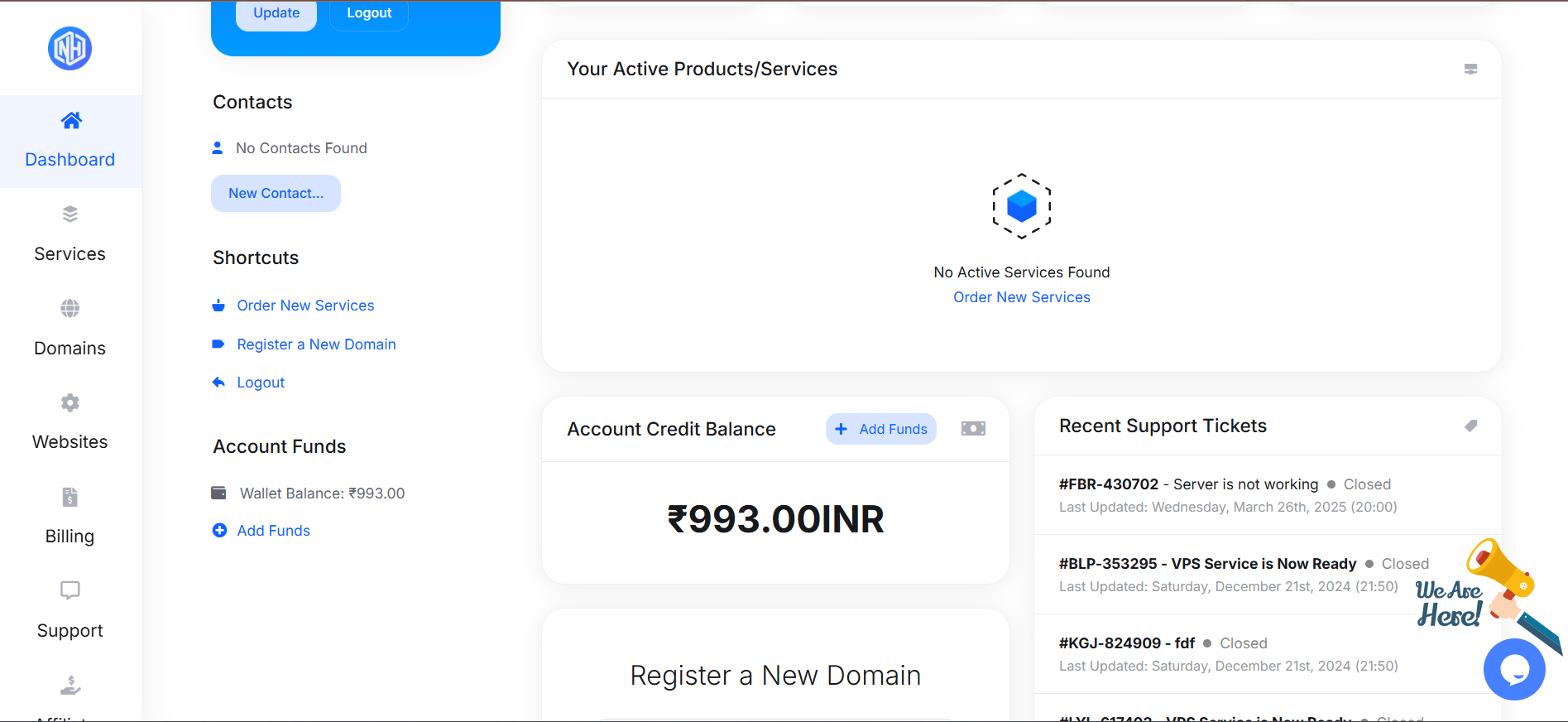
After logging in, from the dashboard, then Scroll down you see Account Credit Balance section.
-
Select Add Funds Option.
Step 3: Choose the Amount and Payment Method
-
Enter the amount you wish to add. (Note: Minimum and maximum limits may apply.)
-
Select your preferred Payment Gateway (like UPI, Razorpay, PayPal, etc.).
-
Click Add Funds.

Step 4: Complete Payment
-
After clicking Add Funds, you will be redirected to the selected payment gateway.
-
Follow the on-screen instructions to complete the transaction.
-
Once the payment is successful, the added amount will instantly reflect in your Available Credit.
Important Notes:
-
Funds added are non-refundable and can only be used for purchasing services or renewing existing services.
-
Always ensure you add enough credit before service due dates to avoid service suspension.
-
You can view your credit balance anytime in your client area under Billing > My Invoices or on the dashboard.
Need Help?
If you encounter any issues while adding funds, feel free to submit a support ticket or reach out to our support team — we’re happy to assist!